3. Setting Up the Microphone
A good rate needs only the loud drop. A good amplitude and beat error also need the quiet unlock, timed the same way every beat. So a setup that gives a steady rate can still give a poor amplitude.
The aim: firm contact, enough level, no clipping, and no processing of the sound on its way in.
Settings > Microphone
Open Settings with the gear at the right of the top row, Edit > Settings… (Timegrapher > Settings… on a Mac), or Ctrl+, (Cmd+, on a Mac). Then pick Microphone.
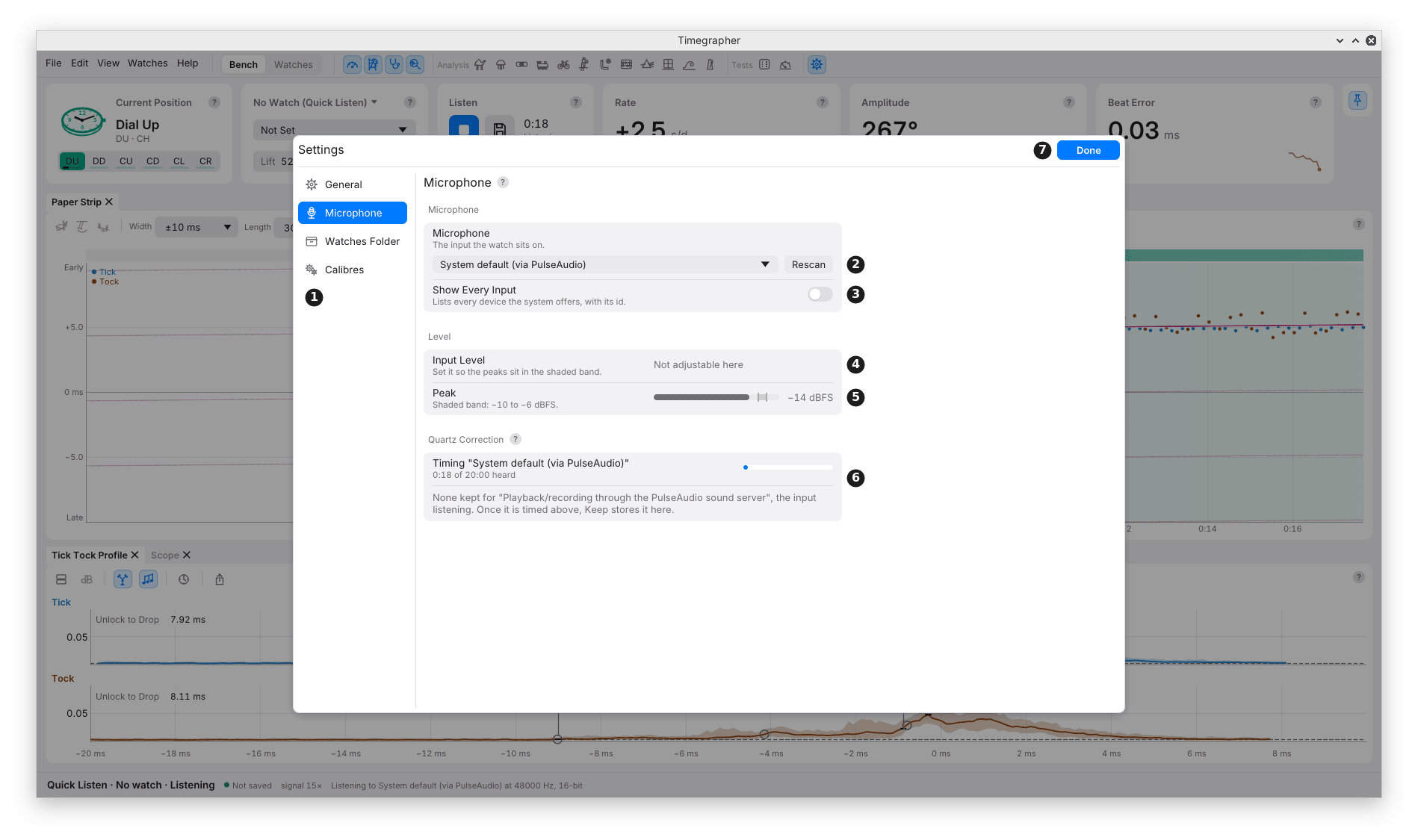
| Mark | Control | What it does | Why you’d use it |
|---|---|---|---|
| 1 | Categories | General, Microphone, Watches Folder and Calibres. Settings opens where you left it. | To move between the settings pages. |
| 2 | Microphone menu and Rescan | Picks the input. Rescan looks for inputs again. | To choose the microphone the watch sits on. Rescan after plugging one in. |
| 3 | Show Every Input | Lists every device the system offers, with its id. | When your microphone is missing from the short list. |
| 4 | Input Level | The microphone’s gain, where the app can set it. | To bring the peaks into the shaded band. |
| 5 | Peak | The loudest sample of the last half second, against a band at −10 to −6 dBFS. Says “Clipping: lower the Input Level.” at once on a clipped sample, for 3 s after the last one. | To set the level while a watch ticks. |
| 6 | Quartz Correction | Times the sound card’s clock against the computer’s while you listen, and keeps the error it finds. | To correct every rate for the sound card’s clock. See Quartz Correction. |
| 7 | Done | Closes Settings. So do Escape and a click outside. |
- Automatic Gain appears here too, for an input whose automatic gain the app can switch. Keep it off: see Automatic Gain. It isn’t in this picture: the virtual microphone used for it has none.
- In this picture Input Level reads “Not adjustable here”, for the same reason.
Which Input to Choose
- macOS and Windows: pick the microphone by its name.
- Linux:
- System default (via PipeWire) (or via PulseAudio) uses whatever input the desktop’s sound settings choose. It works alongside other programs. Pick this, then choose the watch microphone in the desktop’s sound settings.
- An input marked (direct) goes straight to the sound card. It can’t open while the desktop’s sound server holds the card.
- The app asks for 48 kHz (48,000 samples a second), mixes to mono, and takes 16-bit samples where the device offers them. The status bar says what the input opened at.
Setting the Level
Why: too quiet, and the unlock is lost in the noise. Too loud, and the tops of the ticks are cut off (clipped), which moves the drop.
- The Peak meter reads in dBFS (decibels relative to full scale): 0 dBFS is the loudest the input can record. −6 dBFS is half of that; −10 dBFS is about a third.
- Aim for peaks in the shaded band, −10 to −6 dBFS. That is loud enough to time the unlock, with room for a louder tick.
- Linux: move Input Level and let go; the change is made when you release it.
- macOS and Windows: the system sets the level. Open Sound Settings… opens the system’s input settings. Watch the Peak meter here as you change it there.
Clipping
What it is: a tick louder than the input can record, with its top cut flat.
What it does to the readings:
- It moves the drop, so the amplitude and beat error move.
- The rate isn’t affected.
- Turning the level down afterwards can’t repair a clipped recording.
How the app shows it:
- The Peak meter says “Clipping: lower the Input Level.” the moment a sample clips, and keeps saying it for 3 s after the last one.
- The Amplitude and Beat Error cards show a chip such as 3% Clipped: the share of the beats in the reading that clipped. It goes once the clipped beats leave the reading.
Automatic Gain
Keep automatic gain off, wherever it is offered. The app’s switch says so too: “Keep this off.”
What it is: the microphone, or the computer, turning the gain up and down by itself to keep speech at an even loudness. It is made for voices, not for timing a watch.
Why it must be off: a timegrapher reads the shape of each tick, and automatic gain changes that shape from one tick to the next.
- Between ticks it turns the gain up, so the background noise rises through each gap. The quiet unlock, the first sound of the beat, arrives at a high gain.
- On each tick it turns the gain down, so the tick is squashed.
- Amplitude and beat error are timed from the unlock and the drop (chapter 1). When their loudness keeps changing, so can where the app finds them, and both readings can move with the gain, not the watch.
- The level means little: the Peak meter and the signal figure measure a level that keeps being changed, so setting Input Level by them doesn’t hold.
- The rate is the least affected, since it comes from the time between many beats, but the rest of the take is not to be trusted.
A cheap USB (Universal Serial Bus) stand often arrives with automatic gain on and its level at the top. With it off, every tick is heard at the same gain, the one Input Level sets.
Where to turn it off:
- In the app: the Automatic Gain switch here. It shows only for an input whose automatic gain the app can reach. It is off by default, and kept for each input.
- Each time the app opens the input, it sets the switch again. Some stands turn it back on each time they are plugged in.
- If the microphone reports a different setting, the row says so.
- In the system: on Windows, the input’s Properties in the Sound control panel can show an AGC (automatic gain control) tickbox, and some sound drivers add their own; on Linux, the sound card’s mixer can have an automatic gain switch, which the app’s switch sets where it can reach it. Turn off noise suppression, echo cancelling and any “voice” or “enhancement” processing there too.
- From the command line:
timegrapher devices --agc-offturns a USB microphone’s automatic gain off on a Mac or Windows (chapter 25). - The switch’s absence doesn’t prove the sound is unprocessed.
How to tell it is on: timegrapher doctor reports when the
background rises by more than 3 dB through the gap between ticks, the
mark automatic gain leaves (below).
The Signal Figure
The status bar shows signal, for example signal 15×, while listening.
- What it is: how far a typical tick’s peak stands above the typical level between ticks.
- Noise alone reads about 2×. Below 4×, no beats are logged.
- What it doesn’t tell you: it measures loudness, not the shape of the tick. Hum, knocks, or a holder that smears the sound can still give a high figure. Check the Tick Tock Profile as well.
Quartz Correction
What it is: the sound card times the sound by its own quartz crystal. That crystal is usually 10 to 50 parts per million (ppm) off, which moves every rate by 1 to 4 s/d.
How the app measures it:
- While you listen, the app times the sound card’s clock against the computer’s.
- After 20 minutes, once the error is known to half a ppm, Quartz Correction offers it with a Keep button.
- Keep stores it for that input.
What it changes:
- The Rate card’s big figure stays on the sound card’s clock, the
same clock other timegraphers and
timegrapher analyzeuse. - The Rate card’s hover adds the rate corrected onto true time, labelled True Clock, with the day the correction was kept.
- A saved take is read on its own clock log instead, so a reopened take is corrected for the card it was recorded on.
When to use it: once for each microphone you use regularly. Measure it again after changing the microphone or sound card behind an input’s name.
What it needs: the computer’s clock kept by internet time (NTP, the Network Time Protocol). A busy computer delivers sound less evenly, so the offer can come later.
Placing the Watch
- Firm, repeatable contact. Seat the watch the same way each time.
- Stop rattles. A loose bracelet or clasp against the holder adds knocks.
- Isolate the stand from the desk. Typing or a knock on the table shows as a jump.
- Change one thing at a time. If you change the holder, the contact or the level, note it: the readings may change with it.
When Listening Stops
- If the input can’t be opened, stops, or sends no sound for 3 s, the app stops listening and says why.
- A watch that is silent or too quiet is different: listening carries on, and the cards say No regular beat found.
Checking from the Command Line
timegrapher doctor checks a microphone or a recording: peak and
average level, clipped samples, beats found, and whether the background
rises between beats (a sign of automatic gain).
timegrapher doctor --file watch_DU.flac
timegrapher devices
timegrapher doctor --device "USB"
- Stop listening in the app first if the device can’t be shared.
- On Linux, doctor can suggest mixer changes. It makes them only with
--apply. Read the suggestions first.
Previous: Your First Take · Next: The Window
This page comes from the app's user guide at v1.0.1. See it on GitHub.