4. The Window
The window has one top row, two views and a status bar.
- The Bench shows one take: live from the microphone, or opened from a file. Its readings cards sit across the top, with panes below.
- Watches lists your watches and their takes. See chapter 22.
The app always opens on the Bench. Switching views never stops, pauses or saves a take.
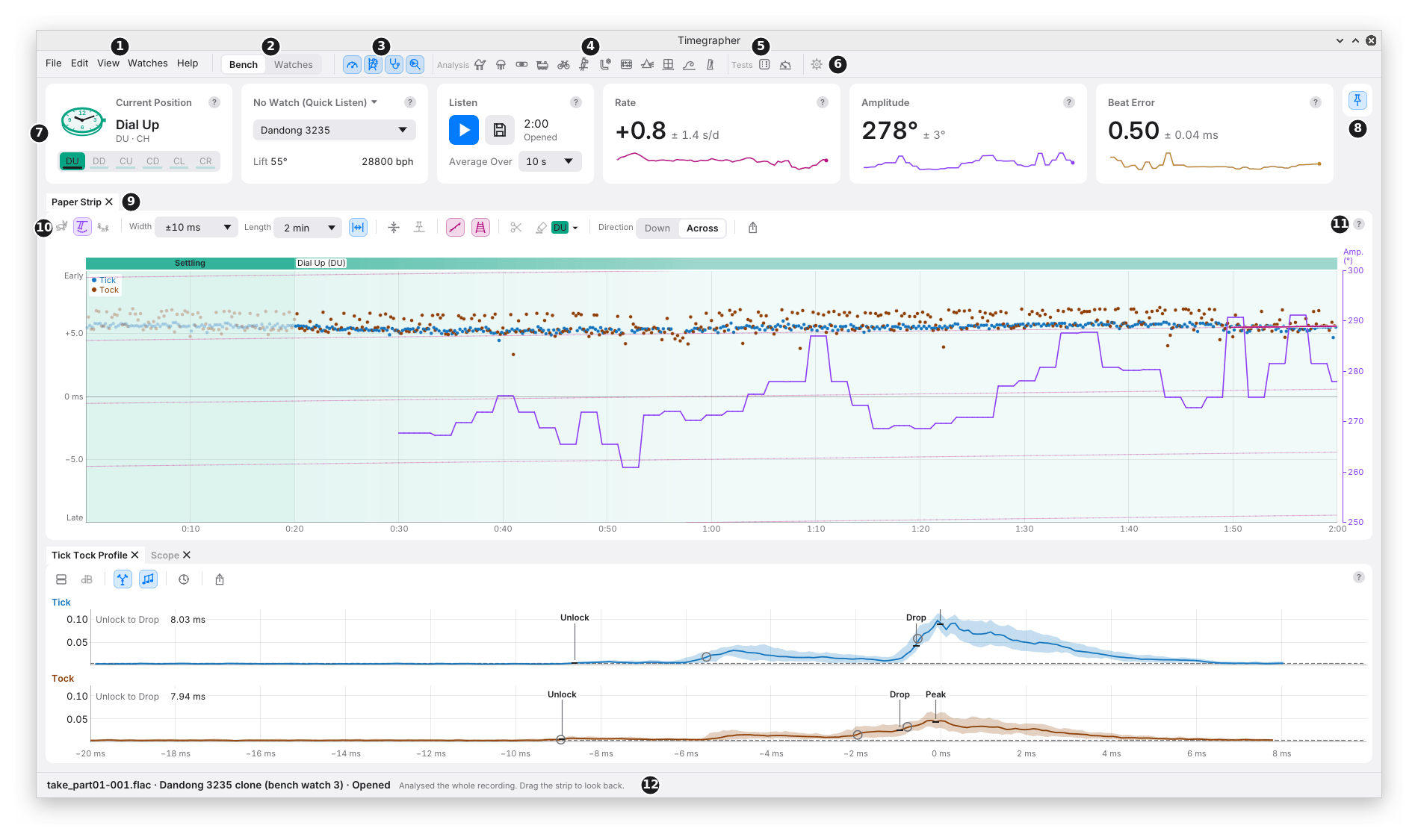
The Top Row
| Mark | Control | What it does | Why you’d use it |
|---|---|---|---|
| 1 | Menus | File, Edit, View, Watches and Help. On a Mac they are in the system’s menu bar. | For everything that isn’t a button on the window. See The Menus. |
| 2 | Bench | Watches | Switches between the two views. Ctrl+1 and Ctrl+2 (Cmd on a Mac) do the same. | Watches to find, file or compare takes; Bench to look at one. |
| 3 | Core pane icons | Show or hide the Readings, the Paper Strip, the Tick Tock Profile and the Scope. | The panes you use on every take. |
| 4 | Analysis icons | Show or hide Charts, Distributions, the nine Steadiness panes and Isochronism. | To look at how a take changes over time. |
| 5 | Tests icons | Show or hide the Positions Test and the Power Reserve Test. | To run a test or read its results. |
| 6 | Settings gear | Opens Settings. | For the appearance, the microphone, the Watches folder and the calibres. |
- Pane icons: a shown pane’s icon is blue on a tinted chip; a hidden one is grey. Rest the pointer on an icon to see its pane’s name.
- Each icon is a small picture with a pun on its pane: a pole dancer for the Paper Strip, a stethoscope for the Tick Tock Profile, a camel for Charts, an Allen key for Allan Deviation.
- A narrow window: the largest icon groups fold into a menu under their name, until the rest fit. The number beside a folded group’s name, such as Analysis (2), is how many of its panes are shown; with none shown there is no number.
- In Watches the pane icons hide, since the panes belong to the Bench.
The Readings Cards
Mark 7. Six cards across the top: Current Position, Calibre and Listen, then Rate, Amplitude and Beat Error.
- Each card has a title row, a big figure and a row of controls.
- Each has a ? for its help, and a chip beside it when something limits the reading, such as 6 s of Beats or 3% Clipped.
- Rest the pointer on a figure to see what stands behind it.
Chapter 5 covers every card.
Compact Readings
Mark 8. The pin at the right end of the cards.
- Unpinned: the cards fold into a strip 44 points tall: the position, the watch, ▶ with the take’s length, and the three figures. A click on the strip opens the full cards over the panes; they close when the pointer leaves, or on Escape.
- Pinned (lit): the cards stay open in the layout.
- Why: more room for the panes on a small screen, with the figures still in sight. View > Compact Readings does the same.
Panes
Below the cards are the panes. The app starts with the Paper Strip, and under it the Tick Tock Profile with the Scope as a tab behind it. Every other pane starts hidden.
| Mark | Part | What it does | Why you’d use it |
|---|---|---|---|
| 9 | Tab | The pane’s name, with ✕ to hide it. | Drag a tab to move its pane beside, above or behind another. |
| 10 | Toolbar | Every control for that pane, and only that pane. | A setting in a pane’s toolbar changes that pane alone. |
| 11 | ? | The pane’s help: hover for a hint, click for more. | To learn what a pane shows without leaving the app. |
- Arranging panes: drag a tab onto another pane’s edge to put it beside or under it, or onto its tab row to stack it as a tab. Drag a divider to resize.
- The arrangement is kept between sessions.
- View > Reset Panes puts them back as the app starts.
- Export… (the share icon in most toolbars) saves the pane as a picture: a PNG (Portable Network Graphics) as it is on screen, or an SVG (Scalable Vector Graphics) whose lines and text stay sharp at any size. The file name’s ending, .png or .svg, decides which. Use it to share a pane, or put it in a report.
- Every control has a hover hint. Rest the pointer on any button or menu to see what it does.
The Status Bar
Mark 12. One line along the bottom, in both views.
On the left, the take:
- Its name, its watch and its state: for example, Quick Listen · No watch · Listening, or a file’s name and Opened.
- While listening: whether the take is saved, the input, and the signal (chapter 3).
- The latest message, such as “Analysed the whole recording”.
On the right, notices: a short phrase for each thing that needs you.
| Notice | Means |
|---|---|
| A red icon and Recording Stopped… | The recording failed. Click for the whole message. |
| A red icon and a message’s first line, ending “…” | Something else went wrong. Click for the whole message. |
| A warning icon and a caveat | An opened take’s USB lines and its clock log measure its sound card differently. Click for both figures. |
| Closed Unexpectedly… | The app crashed last time. Click to make a report. |
| Unsaved Sound Found… | Sound from an earlier session wasn’t saved. Click to open, move or delete it. |
| Timegrapher 0.2.0 Available… (with the version found) | A newer version is published. Click for its download page. |
- The status bar never repeats a card’s figures.
- Nothing appears above the readings, so the window never moves under the pointer.
The Menus
On a Mac the menus are in the system’s menu bar, with one more, Timegrapher, first:
| Item | What it does |
|---|---|
| About Timegrapher | Shows the version. |
| Settings… (Cmd+,) | Opens Settings. On a Mac it is here, not in Edit. |
| Hide Timegrapher, Hide Others, Show All | The usual Mac window commands. |
| Quit Timegrapher (Cmd+Q) | Closes the app, asking about unsaved sound as Quit does below. On a Mac it is here, not in File. |
The tables below are the menus on Windows and Linux. On a Mac, File has no Quit and Edit has only Remove All Masks….
File
| Item | What it does | Why you’d use it |
|---|---|---|
| Open Recording… (Ctrl+O) | Opens a WAV or FLAC file and analyses all of it. From outside your watches, it asks first whether to add it to one. | To read a recording from another app, or a file someone sent you. |
| Open Folder… | Opens a take this app saved, or a folder of WAV or FLAC segments of one long run, joined end to end. | To reopen a take saved outside your watches. |
| Save… (Ctrl+S) / Save Again | Saves the take so far. | To keep a take now. Dimmed while a kept take records into its folder by itself. |
| Save (Ctrl+S, no “…”) | For an opened recording whose masks or positions changed: saves those into its session file. | To keep masking or position marks made on an opened take. |
| Save As… (Ctrl+Shift+S) | Saves the take as a new take in a folder you choose. Save Again then goes there. Dimmed until the take has been saved once. | To make a copy somewhere else. |
| Save Analysis Only… | Keeps the take’s readings without its sound, in a new folder. Stop listening first. | For a long take whose sound would fill the disk. |
| New Session | Clears everything and starts again. Listening carries on into the new session. Unsaved sound is asked about first, except a Quick Listen take’s. | For the next watch or position. |
| Quit (Ctrl+Q) | Closes the app. Unsaved sound is asked about first, except a Quick Listen take’s. |
Edit
| Item | What it does | Why you’d use it |
|---|---|---|
| Remove All Masks… | Brings every masked stretch back into the readings, after asking. | To undo masking on the Paper Strip in one step. |
| Settings… (Ctrl+,) | Opens Settings. |
View
- Bench (Ctrl+1) and Watches (Ctrl+2).
- Readings and Compact Readings.
- A tick for the Paper Strip, the Tick Tock Profile and the Scope.
- An Analysis submenu, with a tick for each Analysis pane.
- Positions Test and Power Reserve.
- Reset Panes.
In Watches, all but Bench and Watches are dimmed.
Watches
| Item | What it does | Why you’d use it |
|---|---|---|
| New Watch… | Adds a watch: its name, calibre, lift angle and beat rate. | Before a watch’s first take, so the take goes into its history. |
| Find in Watches… | Shows the Watches view with its search ready to type in. | To find a watch or a take by name, calibre or notes. |
Help
| Item | What it does | Why you’d use it |
|---|---|---|
| User Guide | Opens this manual in your browser. It comes with the app, so it opens without an internet connection; a build without its copy opens the one on GitHub. | To look up a button, pane or reading while you work. |
| Check for Updates… | Asks GitHub whether a newer version is published, and says what it found. Nothing downloads or installs itself. | To see if there is a newer build. |
| Report a Problem… | Makes a zip of what went wrong, with up to five minutes of the sound, to attach to a GitHub issue. The app sends nothing itself. | When something looks wrong. See chapter 27. |
| Add to Applications Menu (Linux) | Puts the app and its icon in the desktop’s applications menu. | So you can start it like any other app. |
Keys
| Key | Does |
|---|---|
| 1 to 6 | Sets the position: DU, DD, CU, CD, CL, CR (dial up, dial down, and crown up, down, left and right). On the Bench, while listening or before anything is on show. Not while typing, behind a dialog, or while a Positions Test or Power Reserve Test runs. |
| Esc | Puts down the Position Brush or the Mask tool. |
| Ctrl+1, Ctrl+2 | Bench, Watches. |
| Ctrl+O | Open Recording. |
| Ctrl+S, Ctrl+Shift+S | Save, Save As. |
| Ctrl+, | Settings. |
| Ctrl+Q | Quit. |
On a Mac, use Cmd in place of Ctrl.
Window Size
- The window is never smaller than 800 × 600 points, so every toolbar and Settings have room.
- No pane on show is laid out shorter than 140 points.
Previous: Setting Up the Microphone · Next: The Readings Cards and the Calibre Card
This page comes from the app's user guide at v1.0.1. See it on GitHub.