22. The Watches View
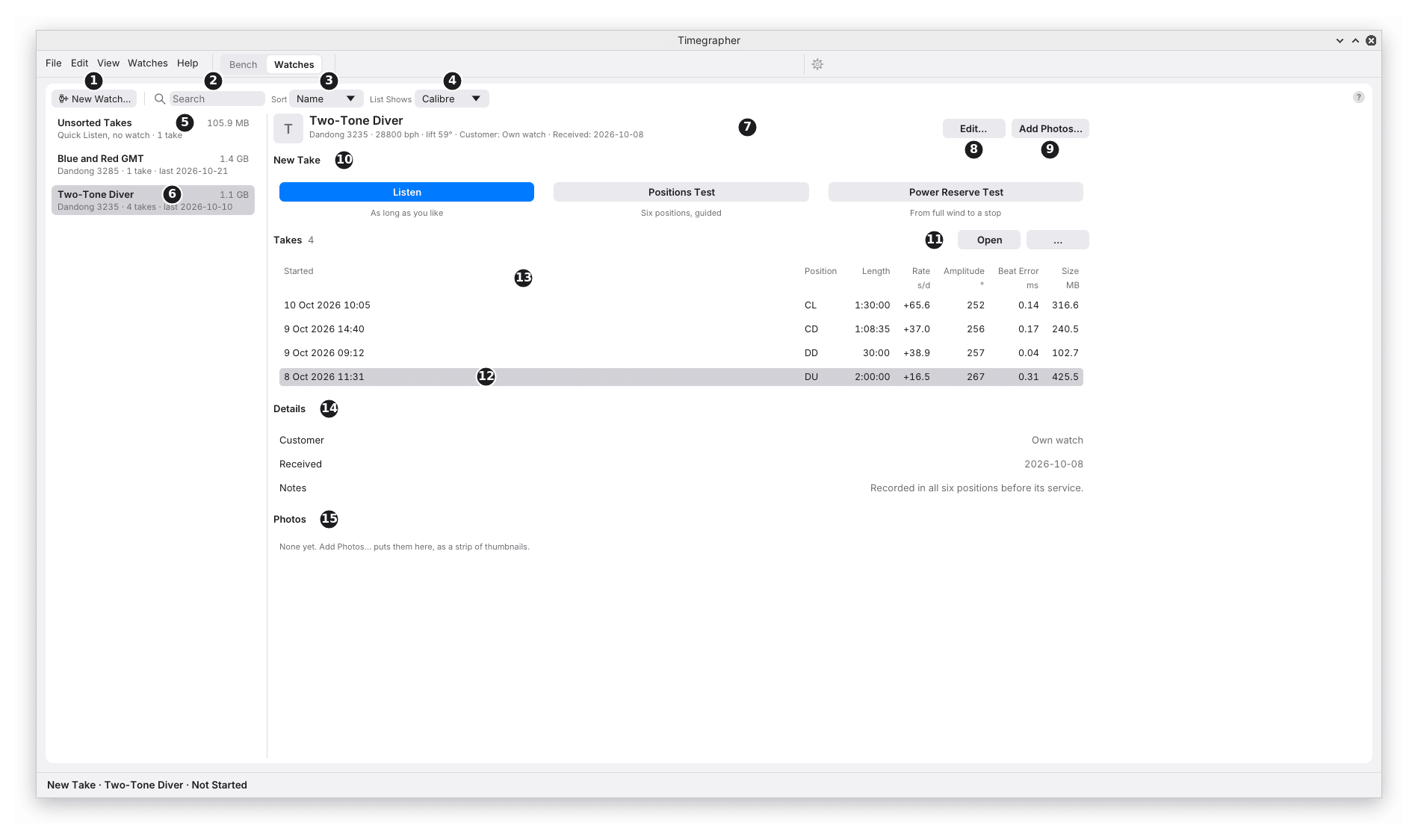
What it shows: your watches, each with its details, photos and every take made of it, newest first, with each take’s rate, amplitude and beat error.
Why you’d use it: a watch’s history in one place. Comparing a take from before a service with one from after, or this month’s with last month’s, is how you see whether a change held. Taking a watch from here also gives each new take that watch’s calibre, lift angle and beat rate, so you don’t set them again each time.
Watches, in the top row’s Bench | Watches switch, opens the view. Watches > Find in Watches… opens it with the search ready to type in. The picture holds two watches and one unsorted take.
The List
| Mark | Part | What it does | Why you’d use it |
|---|---|---|---|
| 1 | New Watch… | Opens the New Watch form (below). | To start a watch’s history. |
| 2 | Search | Finds watches by name, calibre, notes or an added field. A line under the list says how many it shows while something is typed, “1 of 4 watches”, and the words found are in blue. | To find one watch among many. |
| 3 | Sort | By Name, Last Take or Size. | Last Take for the watches on the bench now; Size to find what fills the disk. |
| 4 | List Shows | What the line under each name gives: the calibre, or one of the fields added to the watches, such as Customer. Kept between runs. | To see whose watch each one is at a glance. |
| 5 | Unsorted Takes | Always first: the Quick Listen takes kept but not yet filed under a watch. Picking it goes back to Quick Listen (no watch, no calibre, 52°). | To file takes made before the watch was added. |
| 6 | A watch’s row | Its first photo or its initial (when any watch in the list has a photo), its name, its calibre, how many takes and the date of the last, and the space they use from 1 MB (megabyte). The row picked is shaded. | Pick a watch to see its takes. |
With the view under 900 points wide the list and the watch take turns: picking a watch shows it, and ‹ All Watches goes back. While a watch’s take is listening on the Bench, picking another watch is refused until it stops.
A Watch
| Mark | Part | What it does or shows | Why you’d use it |
|---|---|---|---|
| 7 | The header | The name; under it the calibre, beat rate, lift angle and added fields. | To check the settings its takes will start with. |
| 8 | Edit… | The same form as New Watch, filled in. | To change a detail, add a field, or set the calibre. |
| 9 | Add Photos… | Copies the photos picked into the watch (JPEG, PNG, TIFF or HEIC), each kept as it is. | The dial, the movement or a part, as it came in. |
| 10 | New Take | Listen, Positions Test or Power Reserve Test. Each goes to the Bench and saves into this watch when it stops. Listen starts on the microphone at once; a test is set up and waits for Start Test on the Listen card. Greyed out while a take runs on the Bench. | To add to the watch’s history. |
| 11 | Takes, Open and … | How many takes; Open and the take menu act on the take picked. | Open takes it to the Bench, read whole. |
| 12 | A take | Click to pick it; double-click to open it. Analysis Only, Incomplete or On Show follows the date when it is one. | |
| 13 | The columns | Started, Position (DU; DU, CU; All 6; or Positions Test or Power Reserve), Length, Rate (s/d), Amplitude (°), Beat Error (ms, as a size) and Size (MB). | To compare takes without opening each one. |
| 14 | Details | The added fields and the notes. | |
| 15 | Photos | The photos as thumbnails. Click one to open it in the computer’s viewer; right-click to show it in its folder or delete it. |
Each row’s figures are the take’s own: its last position, read from
its sound on the take’s clock, as the command line’s timegrapher session reads it. A take is read the first time the list shows it
(about a minute for 9 hours of sound), its row blank until then, and the
figures are then kept. A Positions Test’s row gives the mean of its
positions, as its table does. A Power Reserve Test’s gives its run time
as its Length and a dim “—” for the figures, which are hour by hour in
the take.
In the picture, the four takes are one watch in four positions, on four days, before its service: the rate ranges from +16.5 s/d dial up to +65.6 s/d crown left.
New Watch
| Mark | Field | What it does | Why you’d use it |
|---|---|---|---|
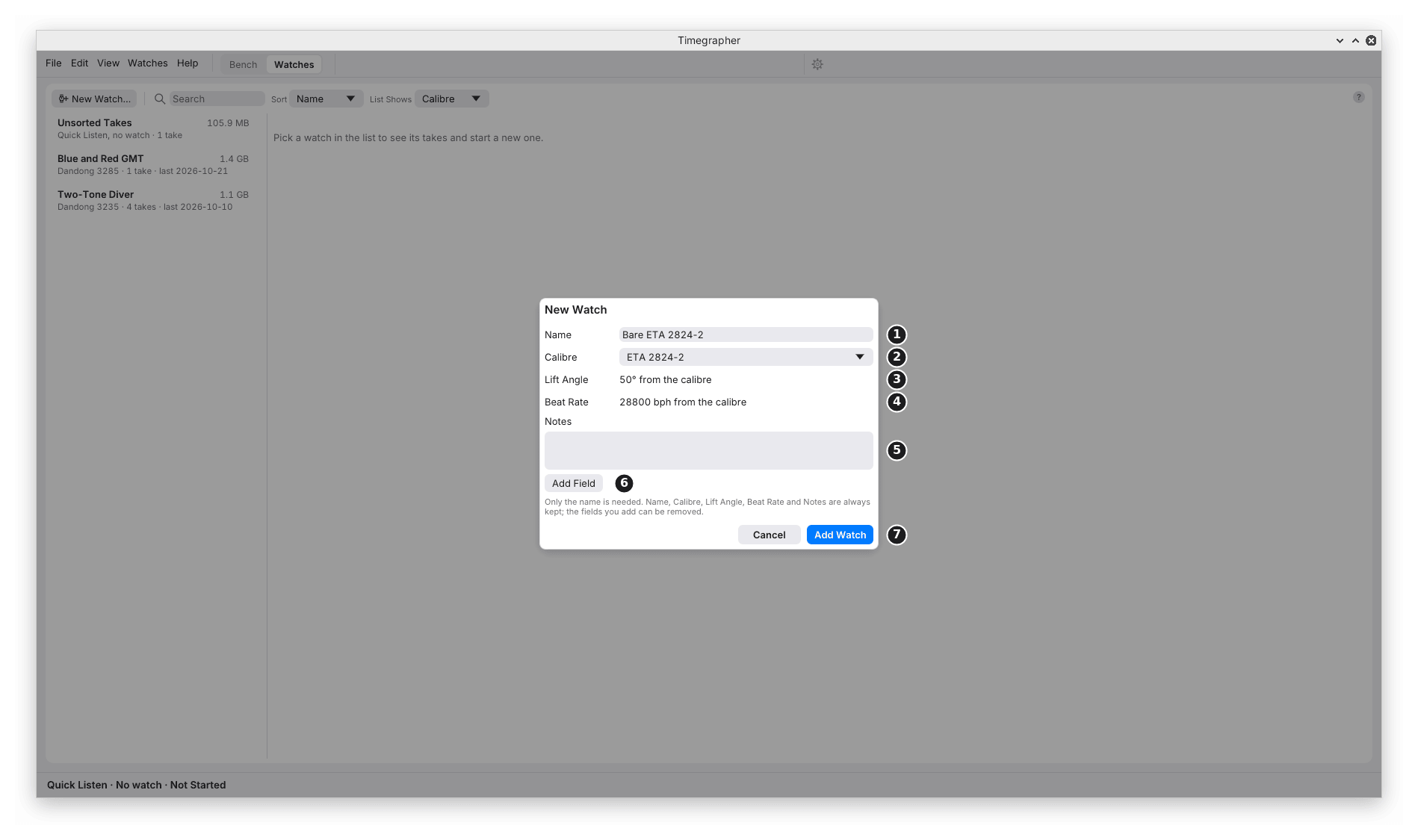
| 1 | Name | The only field needed. No watch can be called Unsorted. | |
| 2 | Calibre | The calibre menu, as on the Calibre card (chapter 5). | So the lift angle and beat rate come from the calibre, and Steadiness names the wheels. |
| 3 | Lift Angle | The calibre’s, shown as “50° from the calibre” and not changed here; with no calibre, or one that doesn’t give it, a figure you type (52° until set). | The amplitude depends on it (M4). |
| 4 | Beat Rate | The calibre’s, or a menu starting at Auto. | Auto finds it from the beats. |
| 5 | Notes | Free text. | Service history, the customer’s complaint. |
| 6 | Add Field | Adds a suggested field (such as Customer) or one of your own: text, a date, a number or money. Only these can be removed. | To keep what your work needs, and to show it in List Shows. |
| 7 | Add Watch | Adds it. Cancel leaves the form. |
The app has no way to delete or hide a watch; only takes and photos can be deleted.
A Take’s Menu
Right-clicking a take, or … over the table, opens its menu. Chapter 23 describes each item, with a picture.
- Open: on the Bench, read whole.
- Show in File Manager (Finder on a Mac, Explorer on Windows).
- Keep Analysis Only…: deletes the take’s sound, keeping its readings.
- Move to Another Watch: in Unsorted Takes, File Under a Watch.
- Delete…: after asking, with its size. It can’t be undone.
A take moved or filed takes the new watch’s name, calibre, lift angle and beat rate, where the watch sets them, and is read again with them. A take kept as its analysis alone takes only the new watch’s name.
What to Look For
| What you see | What it can mean |
|---|---|
| A rate that moves from one take to the next in the same position | A change in the watch, or in the wind, the temperature or the stand. Open both to compare. |
| A row marked Incomplete | Sound files are missing, often a copy or sync not finished. Nothing is changed or repaired. |
| A blank row | The take is still being read. |
What It Can’t Tell You
- Why two takes differ. The list sets them side by side; the cause is for you to find.
- More than the last position. A take in several positions shows its last; open it to see each.
- A take never kept. Only takes saved into a watch or Unsorted are listed.
Previous: Power Reserve Test · Next: Takes and Sound Files
This page comes from the app's user guide at v1.0.1. See it on GitHub.