24. Settings and Calibres
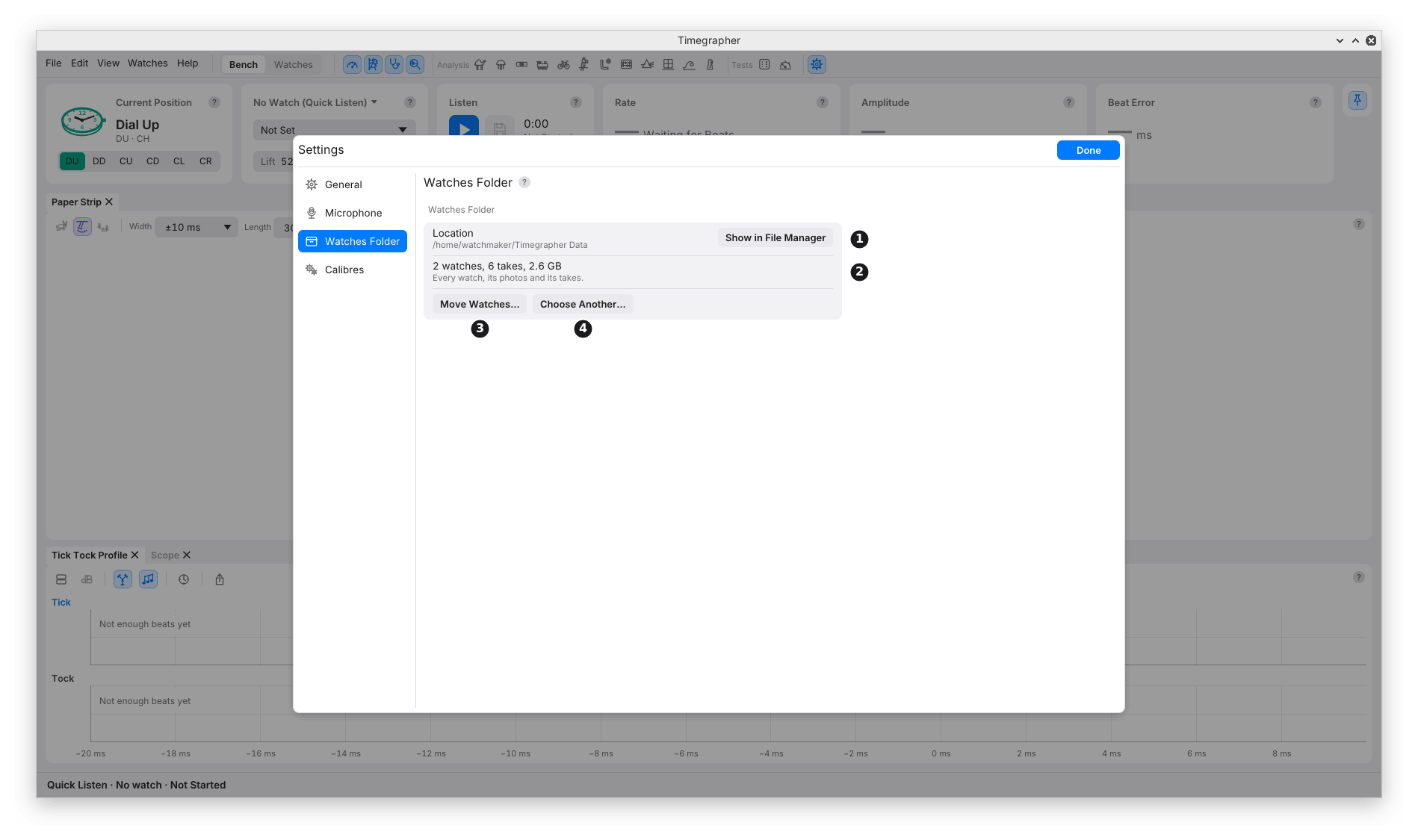
What it covers: the Settings window’s General and Watches Folder pages, and Manage Calibres, where you look up any calibre’s beat rate, lift angle and wheels, add what you know, and keep a short list.
Why you’d use it: the calibre decides the lift angle the amplitude is worked out from, and the wheels Steadiness names its cycles after. A calibre missing from the list, or a wheel nobody has given, is yours to add, and every take of that calibre then uses it.
Open Settings with the gear at the right of the top row, Edit > Settings… (Timegrapher > Settings… on a Mac) or Ctrl+, (Cmd+,). It opens at the page you left it on. Done, Escape or a click outside closes it. The Microphone page is in chapter 3.
General
| Setting | What it does | Why you’d change it |
|---|---|---|
| Appearance | Auto follows the computer’s light or dark setting; Light and Dark override it. | To match the room’s light at the bench. |
| Listen When the App Opens | Starts Quick Listen at every launch once the microphone is set up. On unless switched off. | Off when another program records from the same microphone. |
| Keep Awake | Asks the computer not to sleep while the app listens; the screen can still lock. On unless switched off. If the system refuses, the caption says so. | Leave on: a computer that sleeps leaves a break in the take. A Power Reserve Test keeps it awake whatever this says. |
| Check for Updates at Start | Asks GitHub once at start whether a newer release is out; if so, the status bar offers it. Nothing installs itself, and the request carries no account or identifier. | Off where the computer has no internet. Help > Check for Updates… checks at any time. |
Watches Folder
| Mark | Part | What it does | Why you’d use it |
|---|---|---|---|
| 1 | Location | Where the Watches folder is (Timegrapher Data in your home folder unless you chose another), with Show in File Manager (Show in Finder on a Mac, Show in Explorer on Windows). | To back it up or look inside (chapter 23). |
| 2 | What it holds | How many watches and takes, and their size. | To see how much space the takes use. |
| 3 | Move Watches… | Moves the whole folder into one you pick, after asking. Onto another disk it is copied, checked, and only then removed. It is refused while takes are still being kept as FLAC. | To move the takes to a larger disk. |
| 4 | Choose Another… | Uses a Watches folder elsewhere, or starts a new one in an empty folder; nothing is moved. Use the Default then goes back. | A folder kept in sync with another computer, or a second bench. |
Only one copy of the app at a time can change the watches: a second copy opens them to read only and says so here. The folder can’t be moved while another copy has it open, and the app stays open until a move finishes.
Manage Calibres
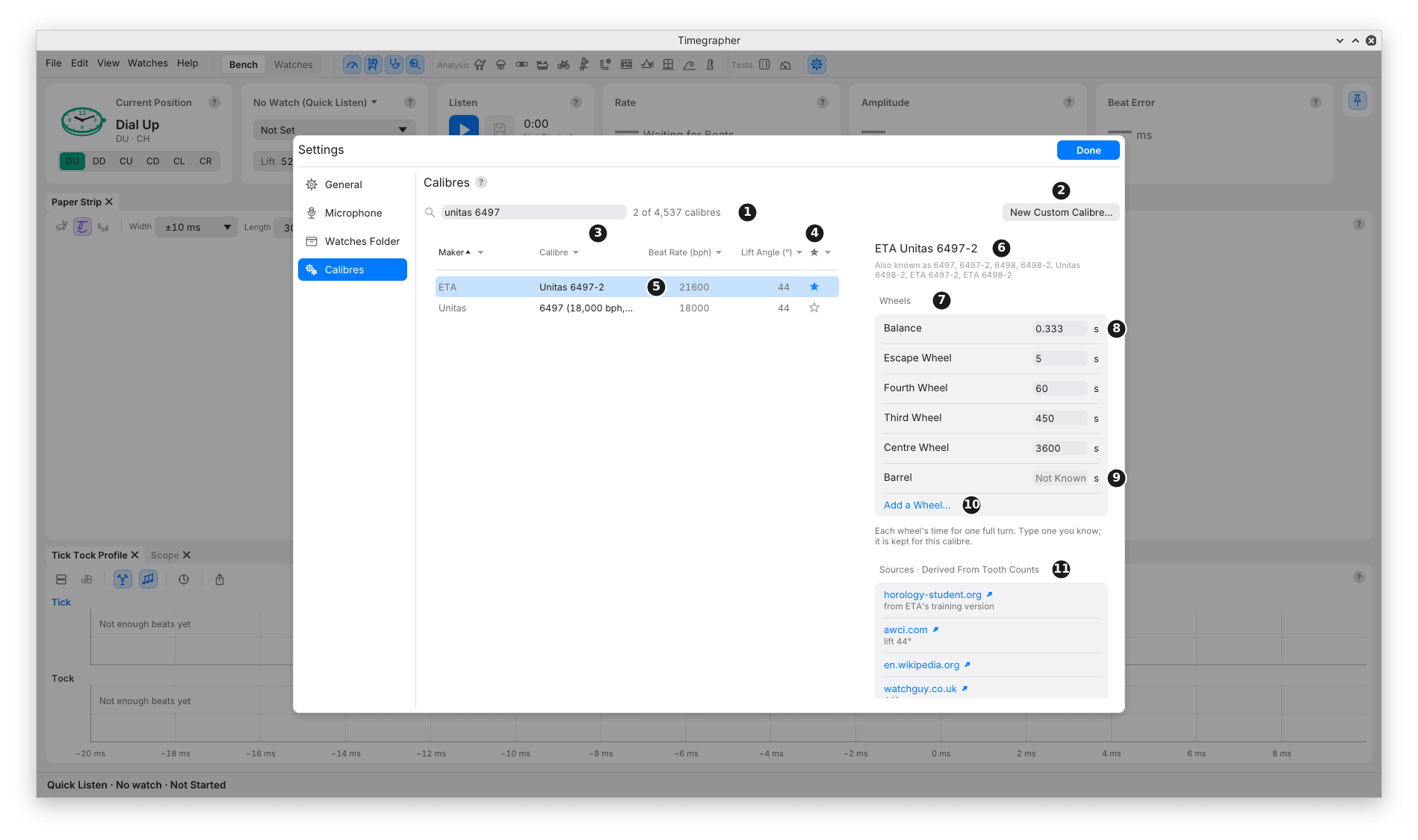
Calibres, in Settings, or Manage Calibres… at the foot of the Calibre menu, opens it. From the Calibre menu with a beat rate known, the table starts filtered to that rate and says so, with Show All.
| Mark | Part | What it does | Why you’d use it |
|---|---|---|---|
| 1 | Search | Finds calibres by maker, calibre or another name (“dd 3235”, “sw200”), and counts them: “2 of 4,537 calibres”. | To find one calibre. |
| 2 | New Custom Calibre… | Adds a calibre the list doesn’t have, under the maker Custom, always at the top. | A vintage or obscure movement. |
| 3 | The columns | Maker, Calibre, Beat Rate (bph) and Lift Angle (°). Click a heading to sort; its ▾ opens a filter with a tickbox for each value, as a spreadsheet’s does. A value not given is a dim “—”. | To work through one maker, or every calibre at one beat rate. |
| 4 | The star | Filled for a calibre on the short list. Click it to add or remove. | To keep the calibres you see often at the top of the Calibre menu. |
| 5 | A calibre | Click to see it in full on the right. | |
| 6 | Its name | And the other names it goes by. | |
| 7 | Wheels | Each wheel’s time for one full turn: the balance, escape, fourth, third and centre wheels and the barrel first, then any other the list names. The hover on each says where its figure comes from. | Steadiness names a cycle after the wheel whose period it matches (chapter 11). |
| 8 | A wheel’s period | In seconds. | |
| 9 | Not Known | A wheel nobody has given. Type its period and it is kept for that calibre, marked Custom, with Clear to go back. | When you have counted the teeth yourself. |
| 10 | Add a Wheel… | Adds another wheel by name and period. | A wheel the list leaves out. |
| 11 | Sources | How the figures are known (“Derived From Tooth Counts”, “Published List”), each source with what it says, then the list’s notes. | To weigh a figure before you rely on it. |
At the foot of the details, Share with the Project… opens a GitHub issue in the browser, filled in with what you added, for you to look over and send; nothing is sent from the app. A custom calibre also has Delete Calibre.
A custom calibre starts with no wheels, since nothing about an obscure movement is assumed. Its Name, Maker, Beat Rate and Lift Angle can be changed in its details; the lift angle is kept between 10° and 90°. Typing its beat rate fills in the balance’s period, two beats: 7200 ÷ bph seconds, 0.25 s at 28,800 bph.
The short list starts as the list’s common and modern calibres. Reset the Short List, in the star column’s filter, goes back to it.
Where your additions are kept: wheel periods and custom calibres go
in calibres.json in the app’s settings folder, which the command line
and the MCP (Model Context Protocol) server, which lets an AI chat app
use the timegrapher (chapter 26), read too. If that file can’t be read, the page says
so and keeps any change only until the app closes, so nothing overwrites
it; repair or move the file, then start the app again.
What a Calibre Pick Does
Chapter 5 gives the Calibre menu. A pick fills in the calibre’s lift angle, where the list gives one, and names the cycles Steadiness finds after its own wheels. In Quick Listen it also sets the beat rate to the calibre’s, and Not Set goes back to Auto; a watch picked keeps its own beat rate. If the watch beats at another rate than the calibre, a chip on the Calibre card says so, such as “Dandong 3235 is 28800 bph”. The pick belongs to the watch on the stand and isn’t kept between runs; a watch in the Watches view keeps its own.
What It Can’t Tell You
- Whether a published lift angle is right for your watch. Sources differ, and the list keeps differing figures as separate entries, each with its source. The amplitude moves with the lift angle (M4).
- Whether a figure you add is right. It is used as you typed it, marked Custom.
Previous: Takes and Sound Files · Next: The Command Line
This page comes from the app's user guide at v1.0.1. See it on GitHub.